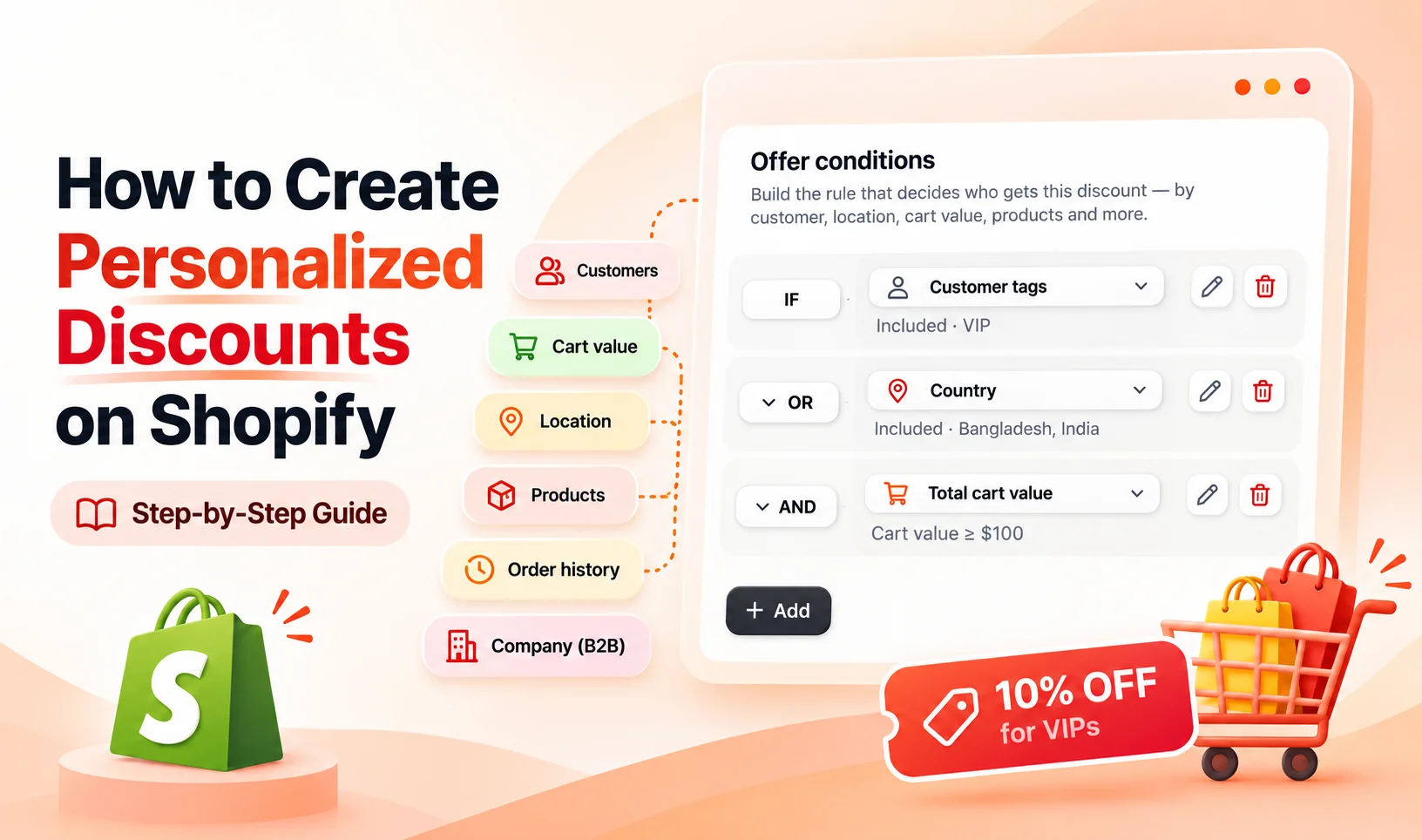
Imagine two customers visiting your Shopify store. One has ordered from you several times, while the other is shopping for the first time. Would you want to give both customers exactly the same discount?
Not necessarily.
You might want to reward returning buyers, offer special prices to selected customers, or give shoppers an incentive when their cart reaches a certain value. That's where Shopify personalized discounts come in.
Instead of making an offer available to everyone, you can decide who qualifies and what they need to do to receive it. Shopify has built-in tools for customer-specific discounts, and apps like DiscountRay give you additional control over discount conditions and rewards.
In this guide, we'll walk through how personalized discounts work, how to create one using DiscountRay's Personalized Discount feature, and how to check that the right customers receive the right offer at checkout.
Short Answer: How Do You Create Personalized Discounts on Shopify?
You can create personalized discounts on Shopify by setting customer eligibility and discount conditions. Shopify supports discounts for specific customers and customer segments. For more advanced rules, DiscountRay lets you combine conditions such as customer tags, cart value, order history, and B2B companies. Once configured, eligible offers can apply automatically at checkout without customers entering a discount code.
TL;DR
Personalized discounts let you offer different rewards based on customer eligibility or shopping conditions.
Shopify's built-in discount tools support specific customers and customer segments.
DiscountRay's Personalized Discount feature supports advanced rules using customer, cart, location, and order-history conditions.
You can combine conditions with AND/OR logic and offer percentage discounts, fixed discounts, free gifts, or shipping rewards.
Always test eligible and ineligible customers before making your personalized offer available.
What Are Personalized Discounts on Shopify?
A personalized discount is an offer available only when a customer or their order meets certain requirements.
For example, suppose you sell skincare products. You want returning customers to receive a special offer, but you don't want to reduce prices for everyone.
You could create a discount that applies only to customers with a particular customer tag. You could also require their cart to reach a minimum value before the offer becomes available.
That's a personalized discount. You've defined who can receive the offer and what conditions they must meet.
Unlike a general storewide sale, the same discount doesn't automatically become available to every shopper.
Personalized discounts can use different types of information:
Condition | Example |
|---|---|
Customer tag | Customers tagged VIP qualify for 10% off |
Specific customer | A selected customer receives an exclusive offer |
Order history | Customers meeting a purchase-history condition receive a reward |
Cart value | Eligible shoppers spending at least $100 qualify |
B2B company | Buyers associated with a selected company receive a discount |
Country | Shoppers from a selected country qualify for a regional offer |
These are examples of possible offers, not discounts that Shopify automatically creates for you.
The main thing to understand is that you're deciding the eligibility rules rather than giving everyone the same promotion.
If you're still deciding which customers to target, our guide to customer segmentation and discounts in Shopify explains how to organize your audience before creating an offer.
Can You Create Personalized Discounts Using Shopify's Built-in Features?
Yes. You don't always need a separate app to offer a discount to selected customers.
Shopify allows you to set customer eligibility for supported discounts. When creating or editing a discount, you can choose specific customers or customer segments instead of making the offer available to everyone.
For example, you could create a Shopify customer segment for buyers who meet particular criteria and use that segment to determine who qualifies for a discount.
You can find these options in your Shopify admin under Discounts. However, customer eligibility is only one part of personalization.
Suppose you want an offer to work like this:
IF the customer has the VIP tag
AND their cart value is at least $100
THEN give them a 10% discount.
You're now combining customer eligibility with a cart condition to control when the reward becomes available.
For this type of conditional offer, you can use DiscountRay's Personalized Discount feature. Its Pro plan includes an IF/THEN rules engine with AND/OR logic, allowing you to configure multiple conditions within one offer.
That gives you more flexibility when a discount needs to consider both the customer and what's in their cart.
Before Creating Your First Personalized Discount
Before opening your discount settings, decide what you want your offer to do.
You don't need a complicated strategy. For your first setup, choose a customer group you can easily identify and a reward you can test.
Let's use a simple example throughout this guide.
Our example offer
Setting | Value |
|---|---|
Offer name | VIP Cart Reward |
Eligible customers | Customers with the VIP tag |
Additional condition | Cart value of at least $100 |
Reward | 10% discount |
Application | Automatic when conditions are met |
With this example, a customer needs to meet both requirements. Having the VIP tag alone isn't enough, and reaching the cart threshold alone isn't enough.
This makes it easier to check whether your offer works as intended.
The percentages and cart values here are illustrative. Before creating a similar offer for your store, choose a reward that makes sense for your products and margins.
How to Create Personalized Discounts on Shopify Using DiscountRay
Now that you know how personalized discounts work, let's create one for your store.
With DiscountRay, you can decide exactly who qualifies for an offer, what conditions they need to meet, and what discount they receive. You can combine customer information, order history, cart requirements, and other criteria without creating separate discounts for every situation.
Let's say you want customers with the VIP tag to receive 10% off when their cart reaches $100. Here's how to set that up.
Step 1: Open the Personalized Discount Feature
From your Shopify admin, open DiscountRay → New discount and select Personalized Discount.
You'll see the New personalized offer page with five main sections:
Title: Give your discount a recognizable name.
Offer conditions: Decide which customers or orders qualify.
Then customers get: Choose the reward.
Combinations: Control whether the offer can combine with other discounts.
Status: Set the offer as Active, Expired, or Scheduled.
There's also a Preview panel on the right. It shows how your rule is structured as you configure it.
Start by entering a title, such as VIP Cart Reward. Customers will see this title in their cart and at checkout, so choose something clear and relevant.
Step 2: Choose Your Personalized Discount Conditions
Go to Offer conditions and click Select condition.
DiscountRay gives you nine condition types. You can choose one or combine multiple conditions depending on the offer you want to create.
Condition | What you can configure |
|---|---|
Country | Include or exclude selected countries |
Currency | Include or exclude selected currencies |
Customer list | Target specific customers or include/exclude customer tags |
Domain | Include or exclude customer email domains |
Company | Include or exclude selected B2B companies |
Product | Target specific products or collections, including or excluding products |
Total cart value | Set a cart-value requirement using comparison operators |
Total cart items | Set a minimum, maximum, or exact item-count requirement |
Order history | Target customers based on previous orders, total spending, or items purchased |
Here's how some of these options work.
Customer list: Choose Customer tags or Specific customers. For customer tags, you can include or exclude selected tags. For our example, choose Customer tags → Include these customer tags and select VIP.
Country, Currency, and Company: These conditions support inclusion and exclusion. For example, you could include customers from Bangladesh and India, exclude a particular currency, or restrict an offer to selected B2B companies. Use the condition that matches the eligibility rule you actually need.
Product: Choose Specific products or Specific collections. You can include selected products in the condition or exclude products that shouldn't qualify.
Total cart value: Set the required cart amount and choose a comparison operator. For our example, set the condition to Greater than or equal to $100, using your store's relevant currency.
Total cart items: Choose a comparison operator and enter the number of items. For example, you could require customers to have more than three items in their cart.
Order history: Choose one of three available metrics: Number of orders, Total amount spent, or Total items purchased. You can compare the value using operators such as Equals, Less than, Greater than, or Greater than or equal to.
You can also define the order-history period using a duration or date range. The available duration units include days, weeks, months, years, and lifetime.
This means you could create a discount for customers who placed at least three orders during a selected period, rather than making the promotion available to everyone.
Once you've configured a condition, save it and return to the offer editor.
Step 3: Add More Conditions Using AND or OR Logic
Now let's make our offer more specific.
Under Offer conditions, click + Add to create another condition.
Each additional condition has a dropdown on the left where you can choose AND or OR. These operators determine how the condition is connected to the others.
Here's the difference:
AND: Requires the connected conditions to be satisfied together.
OR: Allows an alternative condition to qualify a customer or order.
For our example, choose AND and add the Total cart value condition.
Set the comparison operator to Greater than or equal to (≥) and enter $100.
Your rule should now represent:
IF Customer tag = VIP AND Total cart value ≥ $100
This means the customer needs to have the VIP tag and a qualifying cart value to receive the discount.
You can add more conditions if needed.
For example, suppose you want to create a different promotion that considers customer location, cart value, and the number of items in the cart. You could configure:
IF Country: Include Bangladesh, India, and another selected country
OR Total cart value: Greater than $20
AND Total cart items: Greater than 5
DiscountRay lets you select the operator for each additional condition directly from the dropdown.
When mixing AND and OR, review the resulting rule carefully. The way multiple operators are evaluated matters, so don't assume a complex rule will behave exactly as you intend without testing it.
You can also use the pencil icon to edit an existing condition or the trash icon to remove it.
Once you've added your conditions, review the Preview panel to confirm that the rule reflects your setup.
Step 4: Choose the Discount Reward
Now go to Then customers get and open the Discount type dropdown.
DiscountRay provides five reward options:
Percentage: Give eligible customers a percentage discount.
Fixed amount: Deduct a fixed amount from the qualifying purchase.
Free gift: Reward eligible customers with a free product.
Free shipping: Offer shipping at no charge.
Shipping discount: Reduce the shipping cost.
For our example, select Percentage and enter 10% in the corresponding reward settings.
Your complete offer now follows this logic:
IF the customer has the VIP tag AND their cart value is at least $100, THEN they receive a 10% discount.
You can use + Add in the reward section to configure additional rewards when your campaign requires them.
Step 5: Configure Discount Combinations
Next, find the Combinations section.
This section lets you control whether your personalized offer can combine with other eligible product, order, and shipping discounts.
For example, you might already have an automatic shipping promotion running in your store. Before allowing both promotions to apply, consider how the combined discount will affect your profit.
Use the combination toggle to configure your preferred behavior, then verify the result at checkout.
Step 6: Choose the Offer Status
In the Status section, you'll find three options:
Active: Make the offer active.
Expired: Mark the offer as expired.
Scheduled: Configure the offer for a scheduled period.
Choose the status that matches when you want customers to receive the discount.
For our example, select Active when you're ready to make the offer available, then save the personalized discount.
Step 7: Test Your Personalized Discount
Before sharing your offer with customers, make sure the conditions work correctly.
Since our example requires a VIP customer tag and a minimum cart value, test the following scenarios:
Customer and cart | Expected result |
|---|---|
VIP customer with a $120 cart | 10% discount applies |
VIP customer with an $80 cart | Discount doesn't apply |
Non-VIP customer with a $120 cart | Discount doesn't apply |
Non-VIP customer with an $80 cart | Discount doesn't apply |
Make sure the eligible customer is signed in so DiscountRay can identify their customer information.
You should also test any other active promotions to confirm the combination settings behave as expected.
Once these tests pass, your personalized discount is ready.
And that's it. You've created a discount that applies according to the customer and cart conditions you selected, rather than offering the same promotion to everyone.
You can follow the same process to create offers based on B2B companies, purchase history, selected products, currencies, countries, or other supported conditions.
What Other Personalized Discount Rules Can You Create With DiscountRay?
Our example used a customer tag and cart threshold, but those aren't your only options.
DiscountRay's Personalized Discount feature supports several conditions that let you create offers for different shopping situations.
Here are some examples of how you could use them.
1. Discounts Based on Order History
Suppose you want to give a reward to customers who meet a particular previous-purchase condition.
DiscountRay supports order-history targeting, so you can configure an offer around supported purchase-history criteria.
This can be useful when you want to recognize returning customers without giving the same reward to every first-time shopper.
2. Discounts for Selected B2B Companies
If you sell wholesale products, you may want to create an offer for buyers associated with a particular company.
DiscountRay supports B2B company targeting. You can also combine company eligibility with supported cart conditions when creating an advanced personalized offer.
That way, the discount can depend on both the buyer's company and the order they're placing.
For a broader look at B2B pricing decisions, see our guide to B2B personalization on Shopify.
3. Country-Specific Discounts
You might want to offer a promotion to customers in one country without making it available internationally.
DiscountRay supports country-based conditions.
For example, you could configure an offer for eligible shoppers in Germany and choose an appropriate reward.
Remember to test the offer using the relevant checkout country, especially if you sell through multiple Shopify Markets.
4. Discounts for Specific Customers or Customer Lists
Sometimes, you don't need a broad customer group. You may simply want to offer a reward to selected buyers.
DiscountRay supports targeting specific customers and customer lists.
This is useful when you already know exactly who should receive the offer and don't want to make it available more widely.
You can explore the supported conditions and rewards on DiscountRay's features page.
Why Isn't My Personalized Discount Applying?
You've created the offer, but when you test the checkout, the discount doesn't appear. What should you check?
Start with customer identification.
If you're using a customer tag or a specific customer condition in DiscountRay, make sure the shopper is signed in. Customer-targeted discounts may not work as intended during guest checkout.
Next, check the conditions themselves. If your offer requires both a VIP tag and a minimum cart value, the shopper must satisfy both requirements.
Also check whether the offer is currently active. A campaign with a future start date or an expired end date won't behave like an active promotion.
Finally, review the reward and combination settings. Other available discounts can affect the final checkout result, depending on how the discounts are configured and which combinations Shopify allows.
If the problem continues after these checks, contact the DiscountRay support team with your offer settings and test results.
How to Know Whether Your Personalized Discount Is Working
After you've launched your offer, pay attention to more than the number of customers who receive a discount.
You want to know whether the promotion is helping your store reach its goal.
For example, if you created a minimum-cart-value offer, check whether qualifying customers are placing larger orders. If you created an offer for returning buyers, look at whether eligible customers continue purchasing.
A few useful measurements include:
Discounted orders: How many orders actually received the offer?
Average order value: Are customers spending more or less per order?
Discount amount: How much revenue are you giving up through the promotion?
Profitability: Does the additional business justify the discount?
Shopify's Sales by discount codes report can help you review sales associated with discount names and codes, including automatic discounts.
Compare results with a relevant baseline where possible. An increase in orders during a promotion doesn't automatically prove that the discount caused the increase.
For your first personalized offer, keep the measurement simple. Check that the intended customers are receiving it, the discount value is correct, and the results make sense for your business.
Common Mistakes to Avoid When Creating Personalized Discounts
The most common problem with personalized discounts isn't necessarily the discount amount. It's a mismatch between the rule you've created and the customers you intended to reach.
For example, you might create a VIP discount but forget to tag the relevant customers in Shopify. Or you might choose OR logic when the offer should require two conditions together. Either mistake can change who receives the discount.
Another issue is not testing customer identification. If your offer depends on customer information, don't assume it will work the same way for signed-in shoppers and guest customers.
Finally, avoid making your first offer more complicated than necessary. Start with a clear condition and reward, test them properly, and add complexity only when your store genuinely needs it.
You can always create additional personalized offers later. Getting the first one right is more valuable than launching several untested discounts at once.
FAQs About Shopify Personalized Discounts
Can I create personalized discounts on Shopify without an app?
Can Shopify discounts apply automatically to specific customers?
Can I offer Shopify discounts based on customer tags?
Does DiscountRay support personalized discounts based on order history?
Do I need DiscountRay Pro to create personalized discounts?
Can personalized discounts include free gifts or free shipping?
Final Thoughts
Creating personalized discounts on Shopify doesn't need to be complicated. You just need to be clear about who should qualify, what they need to do, and what reward they should receive.
Start with one straightforward offer. It could be a discount for selected customers, a reward tied to cart value, or a special promotion for returning buyers. Once you've configured the conditions, test them from the customer's side before making the offer available.
If you need more control than Shopify's built-in discount settings provide, DiscountRay lets you create conditional personalized offers using customer information, cart requirements, order history, and other supported rules.
Your first personalized discount doesn't have to be elaborate. It just needs to reach the right customers and work as expected when they check out.

Syeda Rehnoma Tanzom
This article is written by Syeda Rehnoma Tanzom, an SEO content writer with 3+ years of experience specializing in eCommerce content. What makes the work here a little different? A close collaboration with support teams to understand what merchants are actually going through, their frustrations, their questions, and their wins. The goal is simple: write content that speaks to real problems, not just search engines. When not buried in keywords and content briefs, you'll find her nose-deep in a good book, binge-watching true crime documentaries or psychological thrillers, and occasionally switching gears with a feel-good rom-com.
Este artículo fue revisado por el Technical Support Team de DiscountRay, que ayuda habitualmente a comerciantes de Shopify a probar la configuración de descuentos, la elegibilidad de clientes, el comportamiento del carrito y los problemas de descuentos en el checkout.